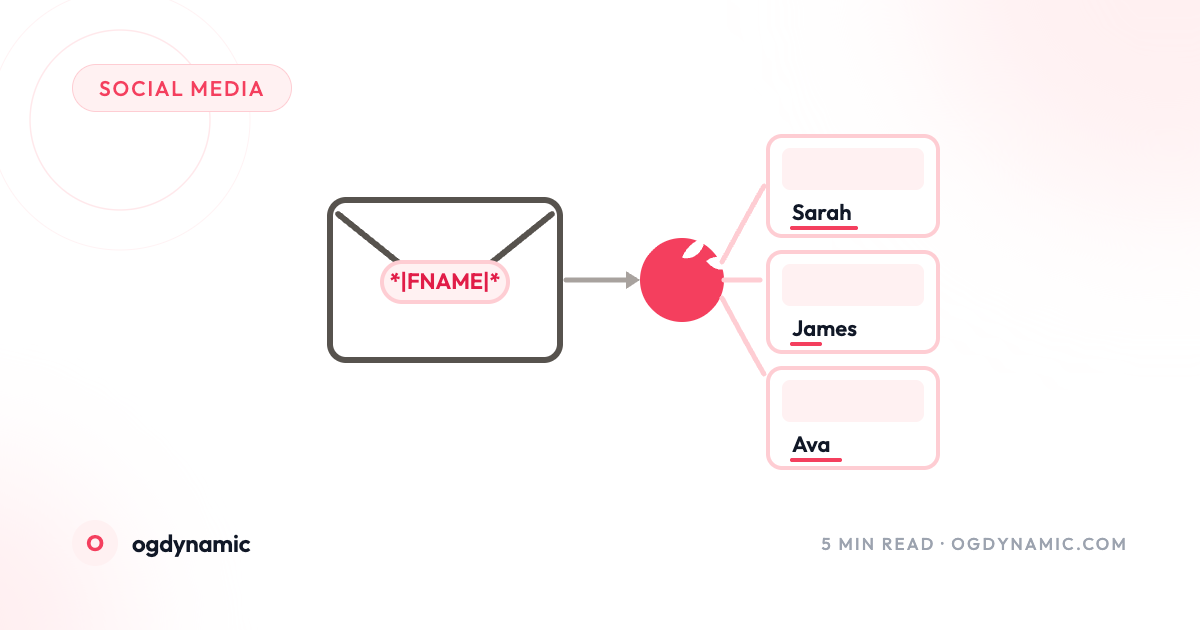
Every subscriber gets the same hero image. The same campaign banner. The same product card. Personalization usually stops at "Hi |FNAME|" — one line of text at the top of an email that every recipient has learned to skim past.
But images still get looked at first. Before anyone reads your subject line reinforcement or your opening sentence, their eyes hit the top image in your campaign. If that image says nothing about them, your carefully personalized copy is doing all its work alone.
It doesn't have to be that way. With ogdynamic, one image URL can render a unique image for every recipient — their name, their plan, their renewal date, whatever data you already have in Mailchimp — substituted at send time by the merge tags you already use.
No image export marathons. No folder of 4,000 JPEGs. One canvas, one URL, infinite variations.
How Merge-Tag Images Work
The mechanism is the same merge-tag substitution Mailchimp already does in your text blocks — extended to images.
An ogdynamic canvas can mark layers as dynamic fields. A dynamic field is a slot in the design — a headline, a name, a photo — whose value can come from the query string of the image URL:
https://cdn.ogdynamic.com/c/01j8.../title=*|TITLE|*
When Mailchimp builds each recipient's email, it replaces *|TITLE|* with that contact's data — exactly like it does in the subject line. ogdynamic then renders the canvas with that value baked in. The result: every contact receives an image containing their own information.
You design once. Mailchimp and ogdynamic handle the rest, per recipient, at send time.
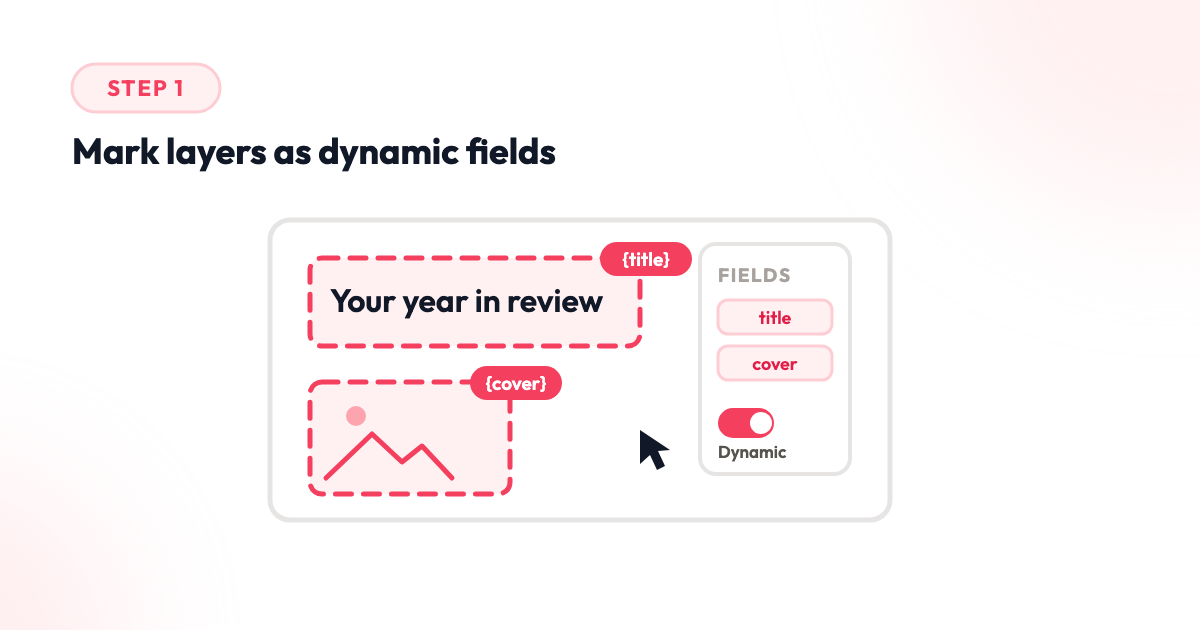
Step 1: Mark Layers as Dynamic Fields
Open your canvas in the ogdynamic editor and toggle Dynamic on the layers you want to personalize — a headline, a first name, a cover photo. Each dynamic layer gets a query parameter (like title or fname) and a default value that renders whenever the parameter is missing.
The default matters more than you'd think: it's what the image looks like in preview mode, in archived campaign pages, and for any contact whose field happens to be empty. Pick a default that looks intentional, not broken.
Step 2: Map Each Field to a Merge Tag
Head to the canvas's Integrations → Mailchimp tab. Every dynamic field appears with an input for its merge tag. Paste the tags straight from your Mailchimp audience — *|FNAME|*, *|PLAN|*, *|RENEWAL_DATE|* — one per field.
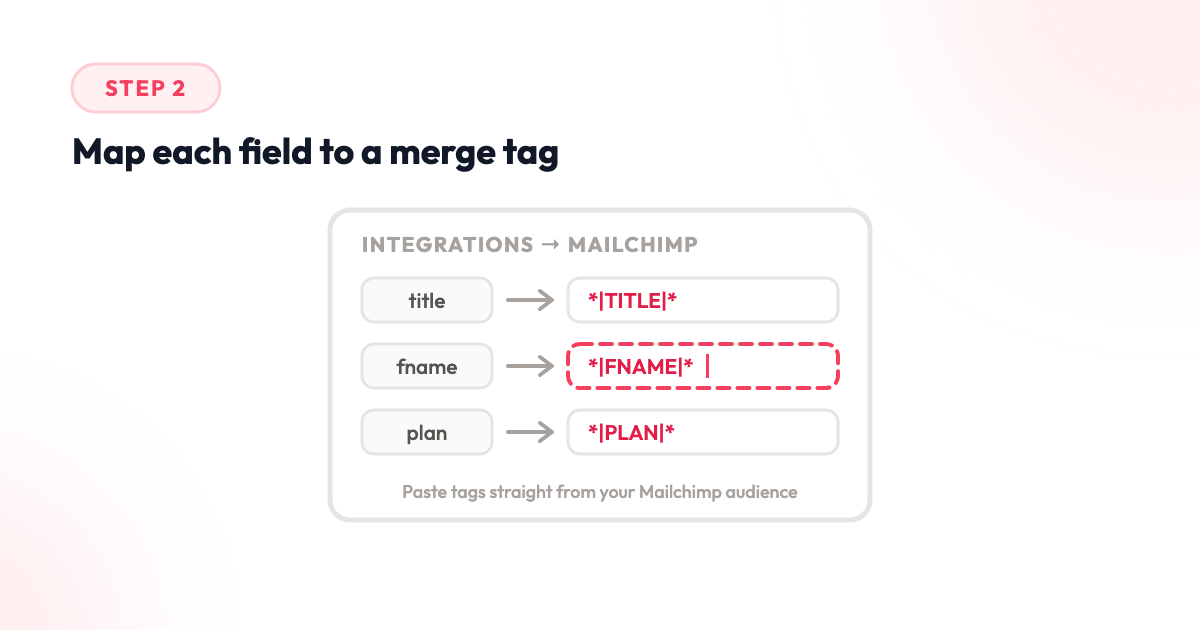
The tags stay literal in the URL. That's the trick: Mailchimp recognizes its own merge tags inside the image URL and substitutes them per contact at send time. ogdynamic never sees the tag — only the final value.
Step 3: Paste the URL into Your Campaign
Copy the generated image URL (or the ready-made HTML block) from the same tab and drop it into your Mailchimp campaign — an image content block, or a code block for the HTML version:
<table role="presentation" width="100%" border="0" cellpadding="0" cellspacing="0">
  <tr>
    <td align="center" style="padding:0;text-align:center;">
      <img
        src="https://cdn.ogdynamic.com/c/01j8...?title=*|TITLE|*"
        alt="Your year in review"
        width="1200" height="630"
        style="display:block;width:100%;max-width:100%;height:auto;"
      />
    </td>
  </tr>
</table>
That's the entire setup. From this campaign on, every send renders fresh images with current data — no redesigning, no re-exporting.
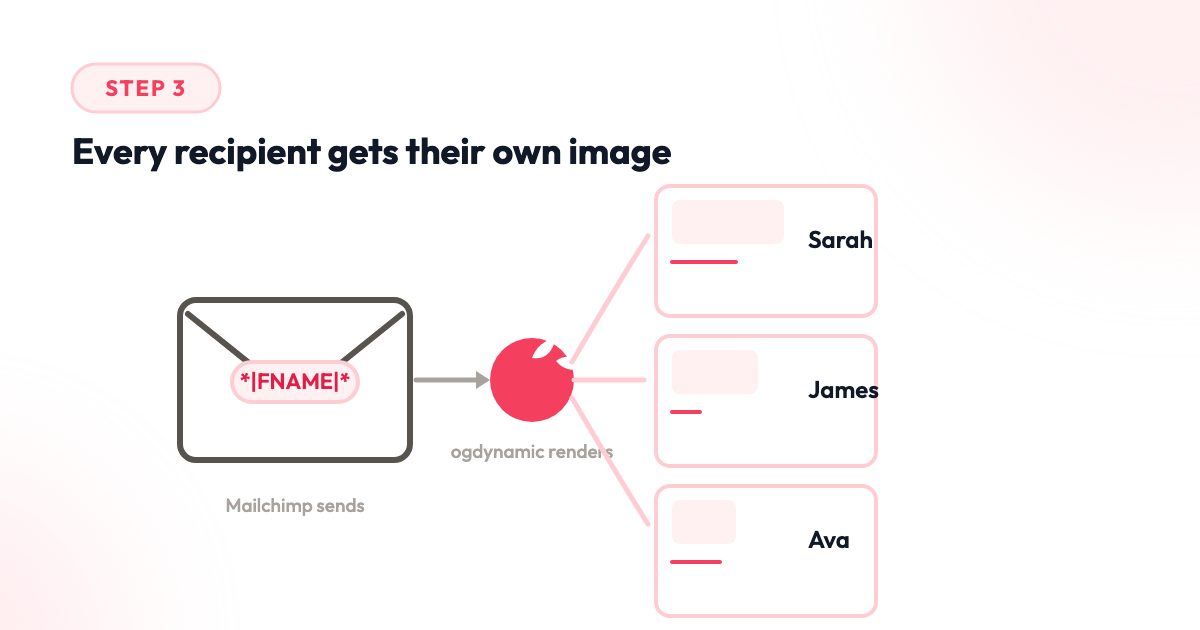
Why One URL Beats a Folder of JPEGs
The manual alternative is grim: export one image per segment, upload them, build hidden conditional blocks to show the right one. It works until your segments multiply, your data changes, or someone asks for "just a small tweak" — and you're back to exporting.
A single dynamic URL changes the economics:
- No per-variant assets. One canvas covers every contact, segment, and send.
- Data stays fresh. The image renders at open time from whatever the merge tag provides — not from a JPEG exported last quarter.
- Edits propagate instantly. Fix a typo in the canvas and every future send uses it; the layout is centrally controlled, only the values vary.
- Scales past segments. Personalize on any field your audience has — not just the two or three your image folder could cover.
Best Practices for Personalized Campaign Images
Keep the dynamic text short. A first name fits anywhere. A full address does not. Design for the longest realistic value, not the average one.
Use the default as a fallback design. Empty fields fall back to the stored default — make it a real headline ("Your year in review"), not a placeholder ("Hello NAME").
Design at 1200×630. It's the size email clients and social platforms handle best, and it gives your text room to breathe at 2× scale on retina screens.
Send yourself a test. Mailchimp's inbox preview substitutes merge tags with your own data — use it to catch overflow before your subscribers do.
One Campaign, a Thousand First Impressions
Personalization earned its place in subject lines because it works. Images are simply the next place it belongs — and with merge-tag-driven rendering, they're no longer the static, one-size-fits-all element they used to be.
Build the canvas once, map your merge tags, and let every recipient's first impression be about them. Get started with ogdynamic and take the Mailchimp integration for a spin on your next campaign.